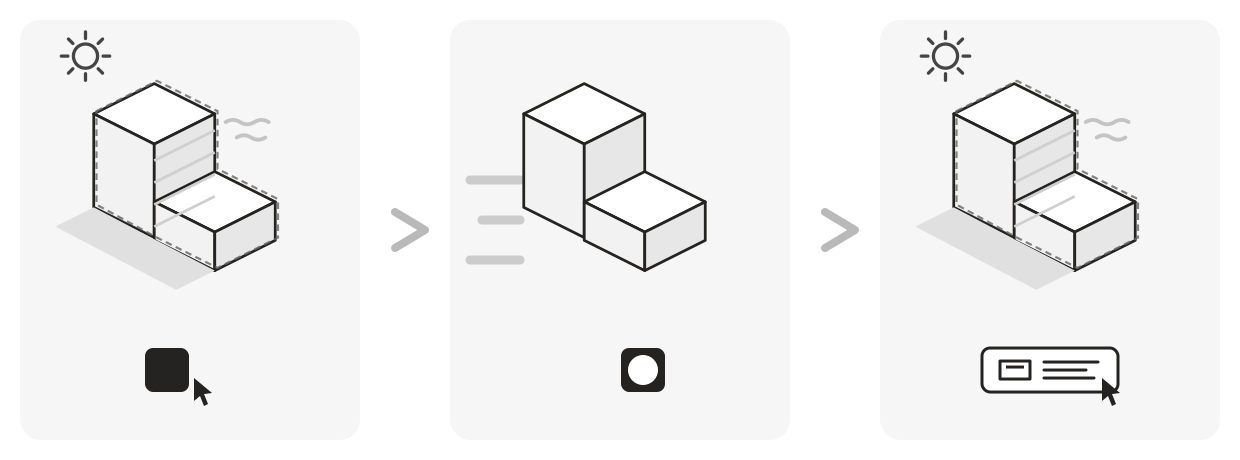
Turbo Mode switches to a lighter working view when a model becomes slow—or before you
start a demanding operation.
In one click it turns off textures, transparency, shadows, and other display effects that
can make SketchUp work harder. Structural edges stay on. Your geometry, materials, tags,
and saved scenes stay untouched.
Before using Turbo Mode, make sure you have a saved scene whose display settings you
are happy to return to. Any suitable existing scene works. If the current view has
important settings that are not saved in another scene, create a new scene to preserve
them first.
Free for SketchUp 2026. Extension Warehouse review is pending.
Hide your heaviest model content in the same click
Put heavy-component tags inside an optional !Performance folder. Turbo Mode switches
every matching folder off when applied; restore them with your recovery scene when you
are ready.
This is the largest performance gain Turbo Mode can offer and requires a short, one-time
setup for each model. The Turbo Mode Guide explains how to set
up the folder without changing member tags or moving objects between tags.
One-way by design
Turbo Mode is an override, not a toggle. It retains no snapshot, and applying it again is
safe but does not restore the earlier view.
Activate your chosen recovery scene to restore the display settings it saved. Without a
suitable scene, you must restore those settings manually. The guide explains which
properties a scene needs to store and why Undo applies only to !Performance folders.
Turbo Mode aborts and reports failures clearly. It runs only when you invoke it:
no telemetry, no network calls, and no background observers.
See Turbo Mode in a working model
The demonstration starts with a working architecture model carrying full textures,
shadows, ambient occlusion, and detailed manufacturer components. It prepares a recovery
scene, applies Turbo Mode, uses an optional !Performance folder for the heaviest tags,
then activates the scene to restore the saved display state.